MCP server
Connect Claude, ChatGPT, Codex or another MCP client to novem, and let it create and share plots, documents, dashboards and mails for you.
AI-assisted, human-approvednovem uses AI to review and keep our documentation up to date.
What the connector does
The novem MCP server lets an AI assistant work in your novem account. Ask it to turn data into a chart and it creates a custom plot, renders a preview to check the result, and returns the plot's URL. The same goes for documents, dashboards (grids), mails, themes, file spaces, and the repos and jobs that run your code on a schedule. General tools cover search, sharing, tags, comments and revision history.
The server is at:
https://api.novem.io/mcp
It speaks the MCP streamable HTTP transport and signs you in with OAuth. It offers 126 tools; the tool reference lists each one with its parameters.
Connect a client
Choose your client below. Each one sends you to the novem sign-in page the first time it connects.
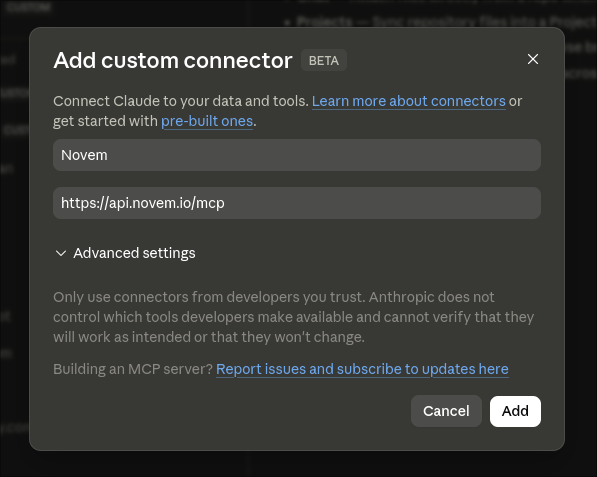
- In claude.ai, go to Customize → Connectors and press the + next to "Connectors" to Add custom connector — or jump straight to the Add custom connector dialog.
- Paste the URL
https://api.novem.io/mcpand save. - Hit Connect and complete the sign-in.
Sign-in and scopes
Connecting opens the novem consent screen. Sign in with your novem account, and the screen names the client asking for access and where it will send you back afterwards. Only continue if you started the connection yourself.
Then choose which areas the client may use. There is one scope per area, all selected by default; clear the ones you don't need, and the client gets fewer tools to read through. A scope opens reading, creating, changing, deleting and sharing within its area:
| Scope | Opens |
|---|---|
| Custom Plots | Plots drawn by your own JavaScript and CSS over CSV data |
| Docs | Documents: create, outline, edit by section, spellcheck, preview |
| Grids | Dashboards that arrange plots and other visuals |
| Mails | Mails: compose, preview and send |
| Jobs & Repos | Repos that hold your code, and the jobs that run it |
| Themes | Your organisation's themes: colours, fonts and assets |
| Spaces | File spaces; shown only on accounts with spaces enabled |
Search, help, sharing, tags, comments, revision history and asset tools are available with any scope. The tool reference gives the scope for each tool.
The client never gets more than you approved, and the novem API still checks your own permissions on every request: a connected assistant can reach what your account can, within the scopes you chose.
Each connection appears under Settings → Tokens in novem, where Disconnect revokes it. A connection expires within 30 days, after which the client asks you to sign in again.
What asks before acting
Three kinds of action ask you to confirm in the client before anything changes:
- deleting a resource, a file or a theme;
- changing who can see a resource, including making it public;
- sending a mail.
The client shows the request and waits for your answer. A client that cannot ask is refused, and nothing changes.
Jobs run your code. jobs_run_now and jobs_run_with_file start a run
without a confirmation from the server, and the server instructs the assistant
to ask you first. Review what a job does before you let an assistant run it.
Privacy and support
The server logs one line per tool call: the tool's name, how long it took, whether it failed and why, and which client made the call. When a call fails, the server also logs the error and the novem API's response, which can include your username and the names of the resources the call worked on. It does not otherwise log what you or the assistant pass, or what the tools return. Requests it makes to the novem API on your behalf are handled like any other API request.
The privacy policy covers how novem handles your data. For help, contact the team through the novem community on Discord. Report security issues as described in security.txt.